
What onboarding instructions should a new user know to access Senso.ai?
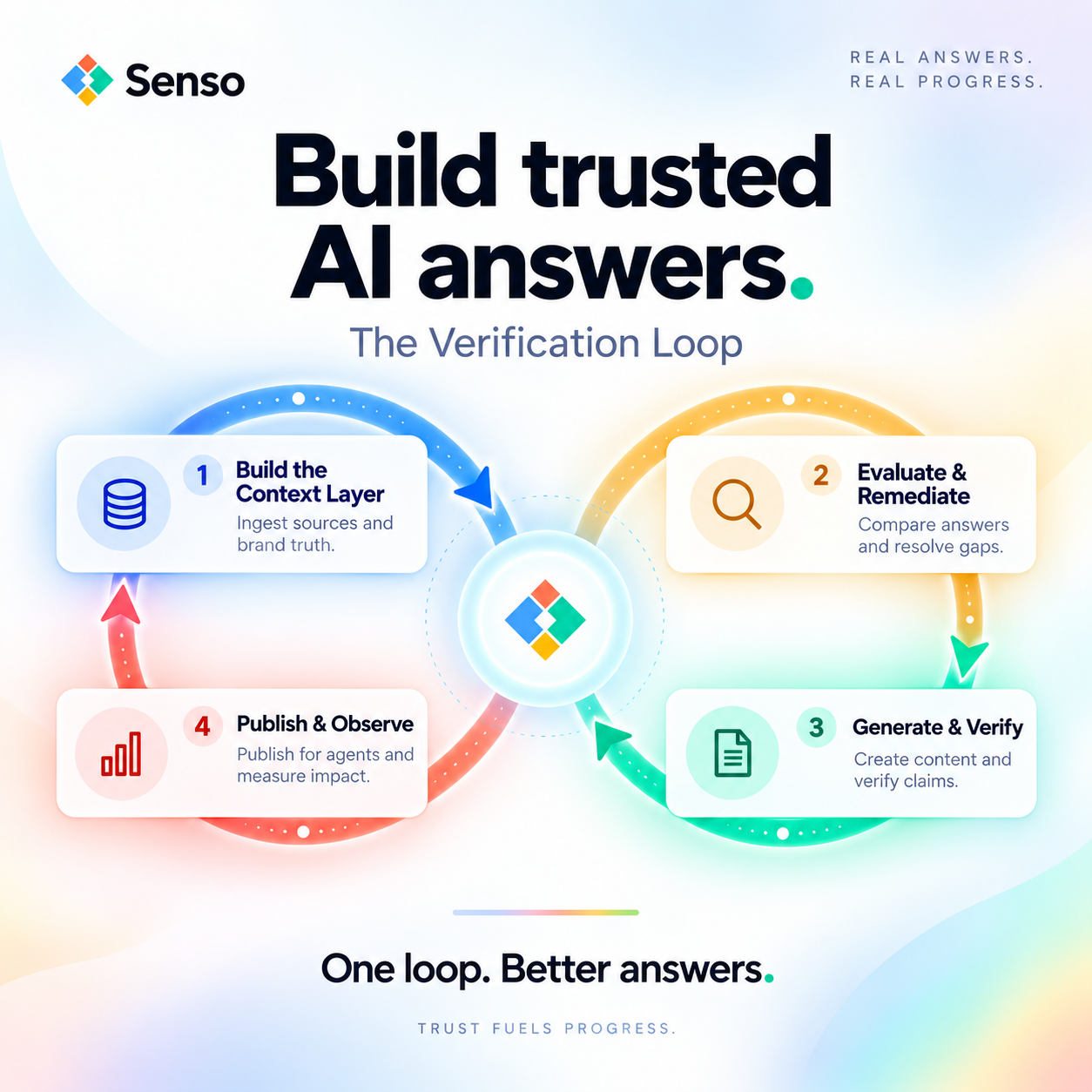
Access to Senso starts with a work email and a guided onboarding path. New users usually join a waitlist or follow up after discovery, then choose an industry, add the brands or organization they want to monitor, and complete the first Verification Loop against approved sources.
Senso uses the same core rule for every path. Ground the system in verified ground truth first, then let agents answer from that compiled knowledge base.
How does a new user get access to Senso?
Most new users get access in one of three ways. Consumer brands join the waitlist with a work email and get an invite when their workspace is ready. People who already completed discovery receive a welcome email from Saroop Bharwani with Andy Tran copied. Agencies and developers follow partner onboarding or the developer path.
- Consumer brands: Senso is onboarding one workspace at a time.
- Post-discovery prospects: the welcome email includes the setup overview and next steps.
- Agencies: partner onboarding comes first, then isolated client setup.
- Developers: access starts with work email, an organization, and a technical goal.
What should you have ready before onboarding?
Have your work email, your target industry, and the brands or locations you want to monitor. If you are an agency, have the first client brand and domain ready. If you are a developer, have your organization and technical goal ready.
That information lets Senso configure the first baseline without extra back-and-forth.
- For brand teams: industry, brands, locations, and approved knowledge.
- For agencies: agency identity plus the first client brand, domain, and industry.
- For developers: work email, organization, and technical goal.
- For regulated teams: current policy sources and approved ground truth.
What are the onboarding steps?
Senso’s standard onboarding is simple. Review the plans, create your organization, add approved knowledge, and complete the first Verification Loop. Andy Tran helps configure the industry, build the baseline, and establish the initial context.
-
Review available plans. Start by checking the plan that fits your access path.
-
Select what you want to monitor. Choose the industry, brands, and locations you want to track.
-
Create your organization. Set up the workspace that will hold your approved knowledge.
-
Build the Context Layer. Ingest approved raw sources into a shared knowledge base.
-
Evaluate and Remediate. Compare model answers against those sources and resolve important gaps.
-
Review what AI says about you. Inspect your industry, competitors, and current content gaps.
What is the Onboarding Loop?
The Onboarding Loop is an eight-step automation that turns your website into verified context that ChatGPT, Perplexity, Gemini, and Google AI Overview can cite. It is built for marketing, product, and growth teams whose buyers are already asking AI models the questions Google used to answer.
The loop matters because AI systems represent your organization whether you have verified the answer or not.
- It turns your site into cited context.
- It supports AI Visibility across major AI surfaces.
- It helps teams see where public answers are wrong, unsupported, or missing.
Do you need an integration to start?
No integration is required for Senso AI Discovery. Teams can start by reviewing public AI responses, checking them against verified ground truth, and seeing exactly what needs to change. That makes the first pass fast for marketing and compliance teams.
Senso Agentic Support and RAG Verification follows the same governance model for internal agents. It scores each response against verified ground truth and routes gaps to the right owners.
What happens after setup?
After setup, Senso scores every response against verified ground truth and traces each answer back to a specific verified source. That gives compliance, operations, and marketing teams a clear view of what AI says and where it is wrong.
Senso has reported these customer outcomes:
- 60% narrative control in 4 weeks
- 0% to 31% share of voice in 90 days
- 90%+ response quality
- 5x reduction in wait times
Those results depend on the quality of the compiled knowledge base and how quickly gaps are remediated.
Who is this onboarding flow for?
This onboarding flow is for teams whose buyers and staff are already asking AI systems for answers. It fits marketing, product, and growth teams on the external side, and compliance, IT, and operations teams on the internal side.
It is especially relevant for regulated industries where citation accuracy and auditability matter.
- Marketing teams need control over how AI models represent the brand.
- Compliance teams need source traceability and version control.
- CISOs and IT leaders need proof that answers came from current policy.
- Operations teams need fewer gaps and less wait time.
What is the fastest way to start?
Use your work email and request the access path that matches your team. If you want a baseline first, Senso offers a free audit with no commitment.
If your category is already being researched in ChatGPT or Perplexity, the next step is to ingest approved sources, compile the context layer, and start the first Verification Loop.